
Table of Contents
Dubai: Your Wi-Fi is fine. Other apps load instantly. But your WhatsApp message just sits there, refusing to go.
When a message won’t send and your connection isn’t the problem, the cause is usually somewhere else: a setting on your phone, the person you’re messaging, the chat itself, or your account. Here’s how to work out which one, and what to do about it.
First, look at the icon
The small symbol next to your message tells you where it’s stuck, so it’s worth checking before trying any fixes.

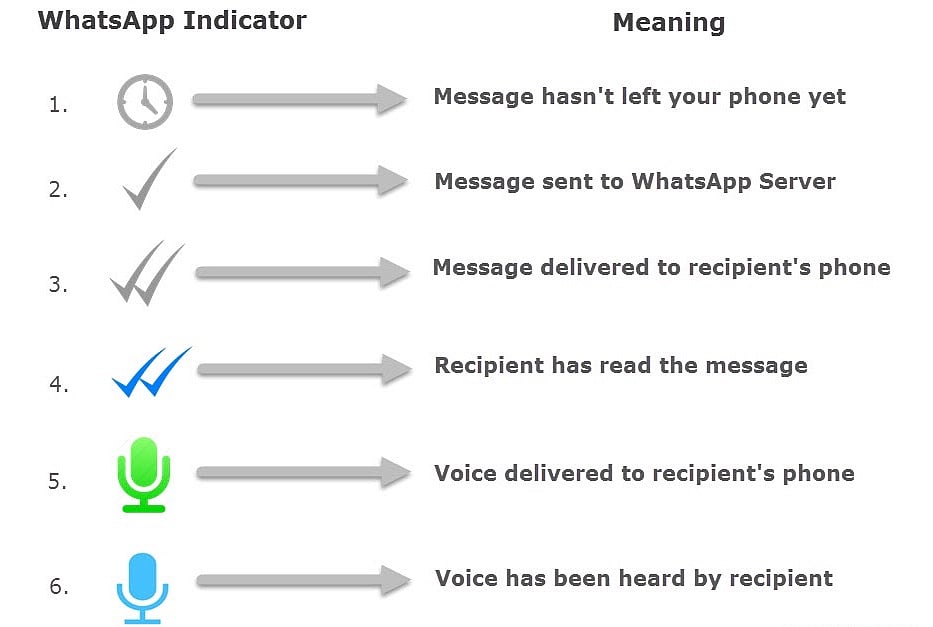
A clock means the message is still queued on your phone and hasn’t left at all. A single grey tick means it has left your device but hasn’t reached the other person yet. Two grey ticks mean it has been delivered, and two blue ticks mean it has been read.
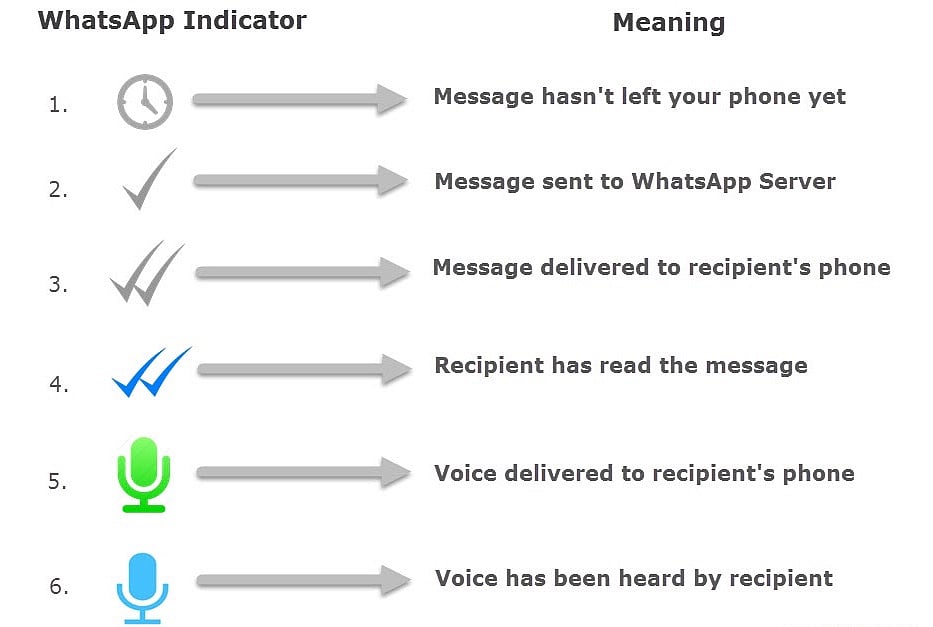
WhatsApp doesn’t show a separate “failed” symbol. The clock is its way of saying the message is still waiting.
If you see a clock
A clock with a working connection usually means something on your phone is stopping WhatsApp from using the internet properly.
Check battery and data restrictions. On both Android and iPhone, power-saving and data-saving features can block WhatsApp from connecting, particularly in the background. On Android, go to Settings, then Apps, then WhatsApp, and check that background data is allowed and that battery optimisation isn’t restricting the app.
Set your date and time to automatic. WhatsApp uses your phone’s clock when verifying its connection, and an incorrect date or time can stop messages sending altogether.
Restart your phone. Restarting the whole phone, rather than just closing the app, clears the background processes that can quietly block network access.
Update WhatsApp. Outdated versions can lose compatibility with WhatsApp’s servers. Check the App Store or Google Play for an update.
Clear the cache on Android. Go to Settings, then Apps, then WhatsApp, then Storage, and tap Clear cache. This removes temporary files only, not your chats.
If you see one grey tick that never changes
This means your message left your phone, so the issue is more likely on the other side.
The most common reason is simple: the other person’s phone is switched off or offline. The message will deliver once they reconnect.
If it stays on one tick for days, you may have been blocked. Messages sent to someone who has blocked you always show a single tick and are never delivered. Other signs can include not seeing their profile picture or last seen, and calls that don’t go through, though privacy settings can hide those too, so none of them is proof on its own.
Less often, the person may have deleted their account or uninstalled WhatsApp.
If WhatsApp says your account is restricted
If you see “Your account is restricted right now”, WhatsApp is limiting what your account can do, usually over spam, automated or bulk messaging.
According to WhatsApp, you don’t need to do anything. The restriction ends automatically once the set time has passed, and you’ll get a notification when it does.
To see how long is left, tap New Chat and select a contact you’ve never messaged before, and a pop-up will show the time remaining. WhatsApp warns that any account involved in spam, automated or bulk messaging could be banned, so it’s worth avoiding mass-forwarding while restricted.
If it’s a group chat
If you can message people individually but not in one group, check the bottom of the chat.
Group admins can change the settings so that only admins can send messages, in which case the text box will be replaced with a notice saying so. If you’ve been removed from the group, you’ll also no longer be able to post there. In either case, only an admin can change it.
If only photos and videos won’t send
Text going through but media getting stuck often points to storage. If your phone is nearly full, WhatsApp may not have room to process attachments. Clearing space, or reviewing large files under WhatsApp’s Settings, then Storage and data, then Manage storage, usually fixes it.
If it’s not just you
Sometimes the problem is WhatsApp itself. Server outages can leave millions of messages stuck on the clock icon at once, even when everyone’s internet is working. If friends are having the same problem, check outage trackers or news reports. There’s nothing to fix on your end; messages will send once service returns.
Still stuck?
If nothing above works, contact WhatsApp support directly through the app, under Settings, then Help, then Contact us.